

How to
9.29.2025
How to Personalize Every Message in Your Snaily Campaign
Why Personalization Matters?
Generic outreach no longer works. On LinkedIn, every prospect must feel like your message was written just for them. That’s exactly what Snaily enables: instead of blasting one template to thousands, you can run a campaign where every lead receives a pre-written, personalized message—crafted manually, with AI, or both.
With just a simple CSV file containing your leads and messages, Snaily helps you launch one-to-one campaigns at scale — in minutes.
This guide walks you through:
- Preparing and formatting your lead list.
- Uploading it into Snaily.
- (Optional) Tips for using AI to enrich your data.
Step 1. Prepare Your Lead List
Your leads can come from anywhere — conference lists, LinkedIn scraping tools (e.g., PhantomBuster, Scrap.com), or a CRM export.
✅ The only required field in your CSV is the LinkedIn URL.
All other fields (Name, Company, Title, etc.) are optional and can be used for personalization.
💡 On our CSV template you’ll also find three “Custom Field” columns (Custom Field 1, Custom Field 2, Custom Field 3).
You can use these fields however you like:
- Store one parameter for a personalized message.
- Insert a full pre-written message (e.g., a connection note, follow-up, or icebreaker).
👉 Use our CSV sample as a template for formatting.
Step 2. Upload Your File to Snaily
- Go to Contacts → Upload Customized LinkedIn Profiles.

- Select your CSV file.
- No need to map fields — Snaily automatically reads your data from the CSV headers, so it’s important to keep them exactly as they are in the template.

Once uploaded:
- You can review your contacts under Recent Uploads.
- For convenience, adjust the Contacts page view to display only the columns you’d like.
- Rename your uploaded list if you want to keep your campaigns organized.

Why This Workflow Works
- Snaily-first approach: All you need is a CSV. No extra tools required.
- Scalable: Works for 100 or 10,000 leads.
- Human-like: Every lead gets a message you’ve prepared—not a generic template.
Tooltip: Enriching Your Data With AI
If you want to make each message truly custom, you can use the power of Gemini or ChatGPT for Google Sheets before uploading your CSV into Snaily. Here’s how:
- Collect as much data as possible about your lead or company and organize it in Google Sheets.
- Upload your ICP (Ideal Customer Profile) into a separate column.
- Ask Gemini or GPT to analyze the company description (from LinkedIn, the website, or the person’s LinkedIn profile) and check if the lead matches your ICP.
- For leads that match, ask Gemini to create a custom opener note message containing:
– An icebreaker.
– 1–2 sentences showing you reviewed the profile.
– A hint of immediate value or a catchy phrase to grab attention. - Use the formula =AI(” “) in Google Sheets with Gemini to generate these openers directly into your CSV.

Pro Tips for AI Prompting
You must continue experimenting with prompts to find the style that works best for you.
For Gemini on Sheets, try using several prompts for the same message.
Once a draft is generated, ask Gemini to improve the message:
- Adjust the tone of voice (friendlier, more formal, etc.).
- Modify the length (shorter, snappier, more detailed).
- Improve formatting (clearer structure, cleaner style).
Sample Basic Prompts You Can Try
Connection Note:
“Write a LinkedIn note under 300 characters using this context: [Context]. Keep it friendly.”
Follow-up:
“Craft a short follow-up using the lead’s pitch + my About Me. Suggest a call and include this calendar link: [link].”
Next Step: Launch Your Campaign
Once your file is ready, Snaily handles the rest—delivering unique, personalized messages to every prospect at scale.
✨ Pro Tip: Start with a small test batch (50–100 leads), check response quality, then scale up to larger campaigns.
Ready to automate your LinkedIn outreach? Start your 14-day free trial — no credit card required.
Related articles
how to
6.8.2026
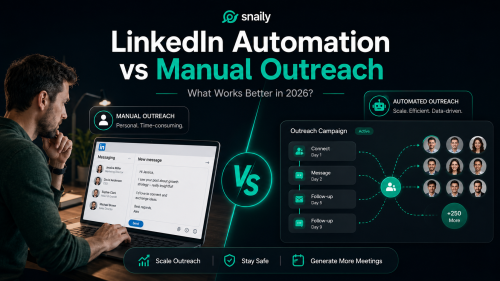
LinkedIn Automation vs Manual Outreach: What Works Better in 2026?
LinkedIn has evolved into one of the most effective platforms for B2B LinkedIn lead generation, enabling companies to expand their professional...
how to
3.23.2026
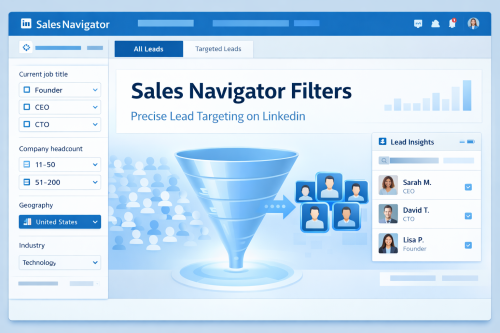
How to Use Sales Navigator Filters for Precise Lead Targeting
Introduction: Why Sales Navigator Still Matters In this article, we will explain why Sales Navigator remains one of the most powerful tools you...
how to
2.4.2026
Why More Teams Are Switching from LinkedHelper to Snaily.io
LinkedIn automation has become a core part of B2B sales and lead generation. For founders, consultants, agencies, and sales teams, manual outreach...

how to
3.27.2024
What is LinkedIn automation?
In today’s world, where every second counts, especially in the professional sphere, LinkedIn stands out as the go-to spot for anyone looking to up...
