

How to
3.23.2026
How to Use Sales Navigator Filters for Precise Lead Targeting
Introduction: Why Sales Navigator Still Matters
In this article, we will explain why Sales Navigator remains one of the most powerful tools you can use to find potential customers and leads for your business.
In practice, LinkedIn as a platform — and Sales Navigator as its professional sales extension — serves as one of the key foundations for many tools involved in data enrichment and lead generation. Many modern data providers rely, at least partially, on LinkedIn data when building their databases of companies and professionals.
That’s why LinkedIn and Sales Navigator continue to play a central role in B2B lead generation. In this article, we’ll walk through how to use Sales Navigator effectively in order to get the maximum possible value from it.
What Makes Sales Navigator Different from LinkedIn
First, it’s important to understand how Sales Navigator differs from standard LinkedIn.
Sales Navigator is a paid LinkedIn subscription that significantly expands the number of filters available for searching potential customers, companies, and accounts. In LinkedIn terminology, these are referred to as lead search (people) and account search (companies).

Instead of focusing on basic search functionality, we’ll go straight into the filters you should be using to achieve the best results and what makes Sales Navigator fundamentally different from regular LinkedIn search.
Search Interface: More Parameters, More Control
When you open Sales Navigator, the difference in the search interface becomes immediately obvious. First, there are significantly more parameters available. Second, most of these parameters are structured as selectable filters rather than simple text inputs.
This means you are not limited to typing keywords into fields like job title or company name. Instead, you can combine structured filters and build much more precise search queries.

Company Headcount: The Foundation of Segmentation
The first and one of the most essential filters is Company Headcount.
This filter allows you to segment companies based on the number of employees. Unlike standard LinkedIn search, this level of segmentation is not available there.
When building your ICP, especially if you are targeting SMBs, it is critical to understand company size ranges. For example, SMB can typically include companies with 1–10, 11–50, or 51–200 employees.

Within this section, you can also select additional parameters such as specific company names or headquarters location. However, when your goal is lead search rather than account-based targeting, these additional filters may not always be as impactful.
That said, headquarters location can still be important in scenarios where geographic targeting or account-based strategies are involved.
Role and Job Title: Identifying the Right People
The next section is Role, which defines what a person actually does within a company.
The most valuable filter here is Current Job Title. This is where you can define multiple relevant roles at once.
For example, you might start typing “Founder,” and the system will suggest matching titles. One of the key advantages of Sales Navigator is that it allows both inclusion and exclusion logic. This means you can include relevant roles while simultaneously excluding irrelevant ones.
For instance, if you are searching for “Owner,” you may want to exclude “Product Owner.” Similarly, you might exclude roles like “Advisor” or “Consultant” to reduce noise in your results.
This level of precision directly impacts the quality of your lead list.
Experience Filters: Years in Company and Position
Another useful set of filters is related to experience — specifically, Years in Current Company and Years in Current Position.
For example, if you are targeting early-stage founders, you might apply a filter such as “less than one year” in the current company. Combined with keywords like “startup,” this can help identify individuals who have recently launched their businesses.
However, it’s important to understand that this is not a definitive indicator of company stage. A person could have joined an established company recently or changed roles internally. Therefore, this filter should always be used in combination with other parameters.
On the other hand, if you are targeting more experienced professionals — for example, CTOs or founders who have been in their role for 2–3 years — then the Years in Current Position filter can help you identify more mature profiles.
Personal Filters: Geography and Industry
The Personal section includes foundational filters such as Geography and Industry.
Geography represents the location specified in a user’s profile and is essential for targeting specific markets or regions.
Industry is a useful but sometimes less precise filter. In most cases, it reflects the primary industry of the person’s current company. However, because professionals may have diverse career paths or multiple experiences, results can sometimes be broader than expected.
For this reason, it is often more effective to combine the Industry filter with keyword search rather than relying on it in isolation.
Recent Updates: Finding High-Intent Leads
One of the most powerful sections in Sales Navigator is Recent Updates.
A particularly valuable filter here is Change Jobs. This indicates that a person has changed their position or company within the last 90 days. Such individuals are often more open to new ideas, tools, and partnerships, making them highly relevant for outreach.
Another important filter is Posted on LinkedIn. This shows users who have actively published content within the last 30 days. These individuals are typically more engaged with the platform and therefore more likely to respond to messages.

These filters allow you not only to find leads, but to prioritize those with higher engagement and intent.
Workflow and Account Lists: Structured Targeting
In the Workflow section, one of the key features is Account Lists.
This allows you to first identify and save a list of target companies based on specific criteria such as industry or keywords. After that, you can filter leads based on those companies, effectively narrowing your search to people who work or have worked within those accounts.
This approach aligns closely with account-based marketing (ABM) and is especially effective in complex B2B sales environments.
Keywords and Boolean Search: Precision Targeting
Another critical parameter is the keyword search field.
This is where you can apply Boolean logic, which allows you to combine and refine search queries using operators such as AND, OR, and NOT. When used correctly, Boolean search significantly increases the precision of your lead generation.
For example, if you are targeting HealthTech founders, you can use queries like:
(“healthtech” OR “digital health” OR “medtech”) AND (founder OR CEO) NOT consultant
If your focus is on AI roles in healthcare, you might use:
(“machine learning” OR AI) AND (“healthcare” OR “medical”) AND (CTO OR “Head of AI”)
For identifying early-stage startup founders, a query like the following can be effective:
(startup OR “early stage”) AND (founder OR co-founder) NOT (“venture partner” OR advisor)
And if you are targeting product or tech leadership in SaaS companies:
(“SaaS” OR “software company”) AND (CTO OR “VP Engineering” OR “Head of Product”)

It is important to understand that Boolean search works best when combined with structured filters such as company size, geography, and experience. On its own, it can generate broad results, but together with filters, it becomes a highly precise targeting mechanism.
How Snaily.io Extends Sales Navigator
While Sales Navigator is extremely powerful for finding leads, it is not designed to manage outreach or scale communication.
This is where Snaily.io comes in.
With Snaily, users can work directly with contacts sourced from Sales Navigator, upload lead lists, and launch outreach campaigns in a structured and scalable way. The platform allows you to manage communication flows, organize leads, and build repeatable outbound processes.
Most importantly, Snaily enables team collaboration. Instead of requiring each team member to have their own Sales Navigator account, teams can centralize lead sourcing and share contacts internally. In practice, this means that a team can operate using a single Sales Navigator account for lead discovery, while distributing and working with those contacts across the entire team inside Snaily.
This approach significantly increases efficiency, reduces costs, and creates a unified outbound workflow — where Sales Navigator is used for precise lead search, and Snaily handles execution, automation, and collaboration
If you’re looking to go beyond manual workflows, tools like Snaily are evolving fast — for example, in their latest update, they introduced messaging, scheduling, and smart lead management features that significantly improve how teams work with LinkedIn data. You can read more about it here: https://snaily.io/snaily-io-got-smarter-messaging-scheduling-smart-lead-tools/
Conclusion
These are the core filters and parameters we recommend using when working with Sales Navigator.
The key takeaway is that the effectiveness of the tool depends directly on how well you structure your search and how clearly you understand your target audience.
Sales Navigator is not a contact database — it is a search engine. Its strength lies in precision, control, and the ability to build highly targeted lead lists.
Ready to automate your LinkedIn outreach? Start your 14-day free trial — no credit card required.
Related articles
how to
6.8.2026
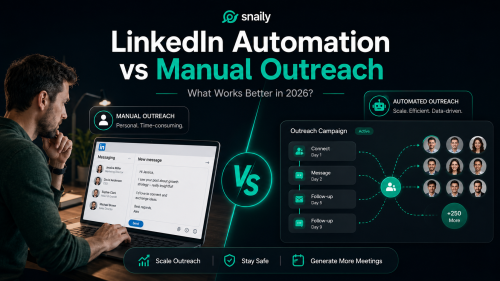
LinkedIn Automation vs Manual Outreach: What Works Better in 2026?
LinkedIn has evolved into one of the most effective platforms for B2B LinkedIn lead generation, enabling companies to expand their professional...
how to
2.4.2026
Why More Teams Are Switching from LinkedHelper to Snaily.io
LinkedIn automation has become a core part of B2B sales and lead generation. For founders, consultants, agencies, and sales teams, manual outreach...
how to
9.29.2025
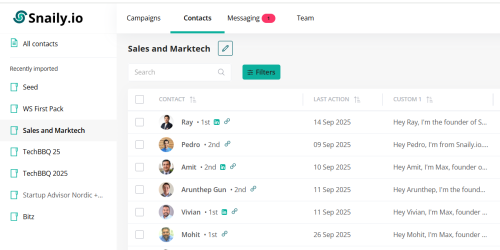
How to Personalize Every Message in Your Snaily Campaign
Why Personalization Matters? Generic outreach no longer works. On LinkedIn, every prospect must feel like your message was written just for them....

how to
3.27.2024
What is LinkedIn automation?
In today’s world, where every second counts, especially in the professional sphere, LinkedIn stands out as the go-to spot for anyone looking to up...
